2-Inch Repair Label Options
The 2-inch repair label will be no higher than 2 inches (5.08 cm). It includes the repair order number (numeric and bar-coded); reference 1 and reference 2; the date received and date requested for; the customer name; the first two available of the business, home, and mobile phone numbers; the make and model; the serial number; common accessories; and the bin location (see 2-Inch Repair Label). Open the Repair Label (2 Inches) branch to view and set 2-inch repair label options.
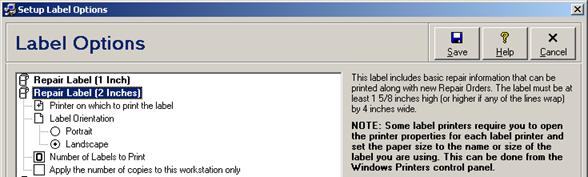
2- Inch Label Option Fields
|
Option |
Description |
|
Printer on which to print the label |
Select the default label printer to be used when printing this label. Select Windows Default Printer (the system default) to use the default printer as configured in the Printers section of the Windows control panel. A different printer may be manually selected when printing the label from a print dialog window (see Printing a Label). See also the note below regarding configuring individual instances of the Windows printer driver settings for each label type and size. This label option applies only to the physical workstation where it was configured. |
|
Label Orientation |
Select Portrait to print the label in portrait orientation, or Landscape (the system default) to print the label in landscape orientation. This label option applies only to the physical workstation where it was configured. |
|
Number of Labels to Print |
Select how many copies of this label, from 0 to 3 copies, should automatically print when saving a new repair order record (see Printing Labels While Saving Repair Orders). The system default is 0 copies. A different number of copies may be manually selected when printing the label from a print dialog window (see Printing a Label). This label option is available only if a database is open. Depending on the “Apply the number of copies to this workstation only” label option (see below), it applies either to the physical workstation where it was configured, or globally to all users. If the form option applies globally to all users then it is read-only in the Repair Mobile edition. |
|
Apply the number of copies to this workstation only |
Check this box if the “Number of Labels to Print” label option (see above) should apply only to the physically workstation where it was configured. Uncheck this box (the system default) if the “Number of Labels to Print” label option should apply globally to all users. This form option is available only if a database is open, and applies only to the physical workstation where it was configured. |
NOTE Other label settings such as the physical label type and size cannot be configured from within At Your Service, but must instead be configured using the Windows printer driver settings in the Windows control panel. In order to support multiple label types and sizes on a single label printer, it may be necessary to install multiple instances of the printer driver for that label printer and then configure each instance individually for the various label types and sizes. Please see the manufacturer’s instructions for information on which settings are available for your label printer and how to configure them. At Your Service Software, Inc. is unable to provide technical support for specific models of printers.
 3-Inch Repair Label Options