Sorting Column Orders
The preferred order, from left to right, in which columns
appear in the browse window may be specified by each user. Columns that are used
most often for your specific business tasks can then be placed in the left-most
positions for convenience. To sort column orders select View  Sort Column Orders from the main menu.
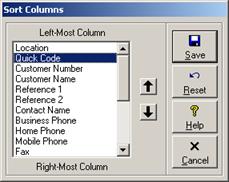
Select a column and then press the  and
and  buttons to move the column towards the top
or the bottom of the list. The top represents the left-most column while the
bottom represents the right-most column. All columns will appear in the list,
even if some are hidden (see Hiding Columns).
Click the Reset button to reset column orders to the system defaults.
Click the Save button to save changes. Click the Close/Cancel
button or press the Esc key to quit without saving changes. Column orders
will be remembered from session to session for each user.
buttons to move the column towards the top
or the bottom of the list. The top represents the left-most column while the
bottom represents the right-most column. All columns will appear in the list,
even if some are hidden (see Hiding Columns).
Click the Reset button to reset column orders to the system defaults.
Click the Save button to save changes. Click the Close/Cancel
button or press the Esc key to quit without saving changes. Column orders
will be remembered from session to session for each user.
To prevent column order settings from being accidentally
changed by a particular user, toggle the lock status of all browse view settings
on or off by selecting View Lock View Settings from the main menu
while logged in as that user.
 Resizing Columns