Customizing Reports Yourself
All reports were created using version 9 of Crystal Reports report writing software by Business Objects (www.businessobjects.com). Therefore, if you obtain a copy of this software (version 9, 10, or 11) then you may choose to customize reports yourself, or to create new reports. Licensed users of At Your Service may request the database password for Microsoft Access databases.
NOTE At Your Service Software, Inc. does not warrant any custom changes that you make to existing report files or to new report files that you create yourself. Additionally, support for such custom programming is not included in any support contracts or support subscriptions (see License Agreement).
Modifying Existing Reports Yourself
All original English-language report files can be found in the Print subfolder where At Your Service was installed (by default C:\Program Files\At Your Service\Print on 32-bit systems or C:\Program Files (x86)\At Your Service\Print on 64-bit systems). Similarly, the original English/French-language report files can be found in the PrintF subfolder, and the original English/Spanish-language report files can be found in the PrintS subfolder (see Language of Communication). However, before checking the standard subfolder for a report file in the configured language, At Your Service always first checks the Custom subfolder for a report file by the same name (by default C:\Program Files\At Your Service\Custom on 32-bit systems or C:\Program Files (x86)\At Your Service\Custom on 64-bit systems). Therefore, to customize a report, first copy the original report file from one of the Print subfolders to the Custom subfolder and then modify that file copy. Each time the report is printed from within At Your Service, the custom report file will automatically be detected and used instead of the original report file. However, if the above procedure is followed, then the original report file will remain intact should you wish to use it again later.
When updating to a new version of At Your Service with a new database structure (see Updating the Access Database Structure after a Program Upgrade, Updating the MySQL Database Structure after a Program Upgrade, and Updating the Microsoft SQL Server Database Structure after a Program Upgrade), all original report files will be overwritten, however the custom report files in the Custom subfolder will remain untouched. While the custom reports may still work, new features that have been added to the software (e.g. longer field widths) may not be available in your old report files. Therefore, you must update or refresh each custom report file using the updated database structure. In some cases it may require making a copy of the new original report file with the updated data structure and redoing the customizations from scratch on that new file.
Creating New Reports Yourself
New reports can be created by copying an existing report as a starting point, or by creating the report from an empty report file.
New custom reports that you create yourself will not automatically appear in the main reports window (see Reports Window) or in report context menus (see Context Reports). However, you may contact At Your Service Software, Inc. to receive a quote to have your new custom reports added to these areas, including the addition of option parameters for your custom reports (see Adding Report Options to Existing Reports).
Updating Custom Reports Yourself After a Version Upgrade
When updating to a new version of At Your Service with a new database structure (see Updating the Access Database Structure after a Program Upgrade, Updating the MySQL Database Structure after a Program Upgrade, and Updating the Microsoft SQL Server Database Structure after a Program Upgrade), all original report files will be overwritten, however the custom report files in the Custom subfolder will remain untouched. While the custom reports may still work, new features that have been added to the software (e.g. longer field widths) may not be available in your old report files.
In many cases all that is required is to refresh the report
with the new database structure. To refresh a custom report, open the report
file in Crystal Reports and select Database  Verify Database from the main Crystal
Reports menu.
Verify Database from the main Crystal
Reports menu.
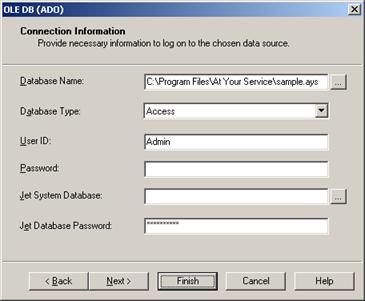
Enter the or select the database name in the Database Name field, enter the At Your Service database password in the Jet Database Password field, and click the Finish button. One or more notification messages will be displayed if the report file is updated to correspond with the new database structure. Save the updated custom report file if any changes are made.
NOTE For security reasons, the At Your Service database password will be provided only to the main contact provided to At Your Service Software, Inc. at the time of purchasing the software.
(See also Customizing Forms Yourself, Customizing Labels Yourself, and Customizations.)
 Having Reports Customized For
You
Having Reports Customized For
You