Using the Windows Clipboard
A number of standard Windows clipboard functions may be used to assist in data entry including copying data between entry fields or even between programs. The general process is to copy data from an entry field to the Windows clipboard and then to paste that data from the Windows clipboard to another entry field, either in the same program or in a different program.
Undo
Click the  button on the toolbar, select Edit
 Undo from the main
menu, or press the Ctrl+Z key combination to undo whatever changes have
been made to the active entry field. If no changes have yet been made to the
active entry field or if the field type does not support undoing then the menu
option will be disabled.
Undo from the main
menu, or press the Ctrl+Z key combination to undo whatever changes have
been made to the active entry field. If no changes have yet been made to the
active entry field or if the field type does not support undoing then the menu
option will be disabled.
Cut
Click the  button on the toolbar, select Edit
Cut from the main
menu, or press the Ctrl+X key combination to cut selected data (i.e.
highlighted by the cursor) from the active entry field to the Windows clipboard,
thereby removing the selected data from the entry field. If there is no data
selected in the active entry field then the menu option will be disabled and
moving the mouse over the toolbar icon will display a “Not Available” message in
the tool tip.
button on the toolbar, select Edit
Cut from the main
menu, or press the Ctrl+X key combination to cut selected data (i.e.
highlighted by the cursor) from the active entry field to the Windows clipboard,
thereby removing the selected data from the entry field. If there is no data
selected in the active entry field then the menu option will be disabled and
moving the mouse over the toolbar icon will display a “Not Available” message in
the tool tip.
Copy
Click the  button on the toolbar, select Edit
Copy from the main
menu, or press the Ctrl+C key combination to copy selected data (i.e.
highlighted by the cursor) from the active entry field to the Windows clipboard
without removing the selected data from the entry field. If there is no data
selected in the active entry field then the menu option will be disabled and
moving the mouse over the toolbar icon will display a “Not Available” message in
the tool tip.
button on the toolbar, select Edit
Copy from the main
menu, or press the Ctrl+C key combination to copy selected data (i.e.
highlighted by the cursor) from the active entry field to the Windows clipboard
without removing the selected data from the entry field. If there is no data
selected in the active entry field then the menu option will be disabled and
moving the mouse over the toolbar icon will display a “Not Available” message in
the tool tip.
Paste
Click the  button on the toolbar, select Edit
Paste from the main
menu, or press the Ctrl+V key combination to paste selected data from the
Windows clipboard to the cursor position of the active entry field. If data was
selected in the destination entry field (i.e. highlighted by the cursor) then it
will be replaced by the contents of the clipboard. If there is no data in the
Windows clipboard that matches the type of entry field (e.g. there is text on
the clipboard but the destination entry field is expecting a number) then the
menu option will be disabled and moving the mouse over the toolbar icon will
display a “Not Available” message in the tool tip.
button on the toolbar, select Edit
Paste from the main
menu, or press the Ctrl+V key combination to paste selected data from the
Windows clipboard to the cursor position of the active entry field. If data was
selected in the destination entry field (i.e. highlighted by the cursor) then it
will be replaced by the contents of the clipboard. If there is no data in the
Windows clipboard that matches the type of entry field (e.g. there is text on
the clipboard but the destination entry field is expecting a number) then the
menu option will be disabled and moving the mouse over the toolbar icon will
display a “Not Available” message in the tool tip.
Delete
Select Edit Delete from the main menu, or press
the Del key to delete selected data (i.e. highlighted by the cursor) from
the active entry field. If there is no data selected in the active entry field
then the menu option will be disabled.
Select/Deselect All
Select Edit Select/Deselect All from the main
menu, or press the Ctrl+A key combination to alternate between selecting
the entire contents of the active entry field, or moving the cursor behind the
last character in the entry field. If there is no data in the active field then
the menu option will be disabled.
Clipboard Tips
• On
entry screens that support communication tools, click the button on the form, select Communication
Copy Address to
Clipboard from the main menu, or press the Ctrl+K key
combination to copy the formatted contact address to the Windows clipboard so
that it may be pasted into another application (see Copying a Formatted Address to the
Windows Clipboard). The country will only be included in the formatted
address if it is different from the country entered on the business location
address of the currently logged in user (see Business Locations).
• When faxing using a fax printer driver (see Communication Options - Fax Tab), the appropriate fax number will automatically be copied to the Windows clipboard where possible. The user then just needs to paste the number when prompted by the fax printer driver (see Faxing a Form, and Faxing a Report).
• To attach a file to a record, copy the path to a single file onto the Windows clipboard and then paste it into the attachments file list area of the record being edited. If the text in the clipboard is validated as being a path to a real file, then that file will be attached (see Attaching a File).
• To attach a hyperlink from the Internet to a record, copy the complete URL from the address bar in your web browser program to the Windows clipboard, or right-click on an Internet hyperlink and select Copy Shortcut (or the equivalent command) from the popup context menu. Then paste the hyperlink into the attachments file list area of the record being edited (see Attaching an Internet Hyperlink).
• Right-clicking some entry fields will also display available clipboard functions in a context menu, even if there are no main menu options available from that entry window (e.g. in a dialog window).
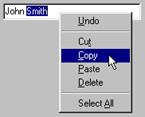
• The cut, copy and paste Clipboard functions always appear in the same order on the toolbar and the Edit menu. Their corresponding quick keys are also next to each other in the same order on the keyboard. An easy way to remember the quick keys is that the X looks like a pair of scissors for cutting (" without the finger holes), the C is the first letter in the word Copy, and the V looks like the tip of an inverted glue bottle used for pasting.
 Communication Tools